
Make a Credit Card Payment

Making a credit card payment is quick and easy. Whether you're staying on top of your monthly bill or paying down your balance, you can manage everything right from your online banking or mobile app. Just follow the steps below to choose your payment amount, select your account, and submit your payment securely.
Step by Step
Step1

Start at the Home Page:
Go to our homepage. In the upper right-hand corner you’ll see the login box. Enter your username and password, then click the "Login" button.
Step 2

Accounts Home Menu:
Once your logged in go to the blue menu bar at the top. Hoover your mouse over the "Additional Services" tab and scroll down and click on "Credit Card eStatements/Auto Pay".
Step 3
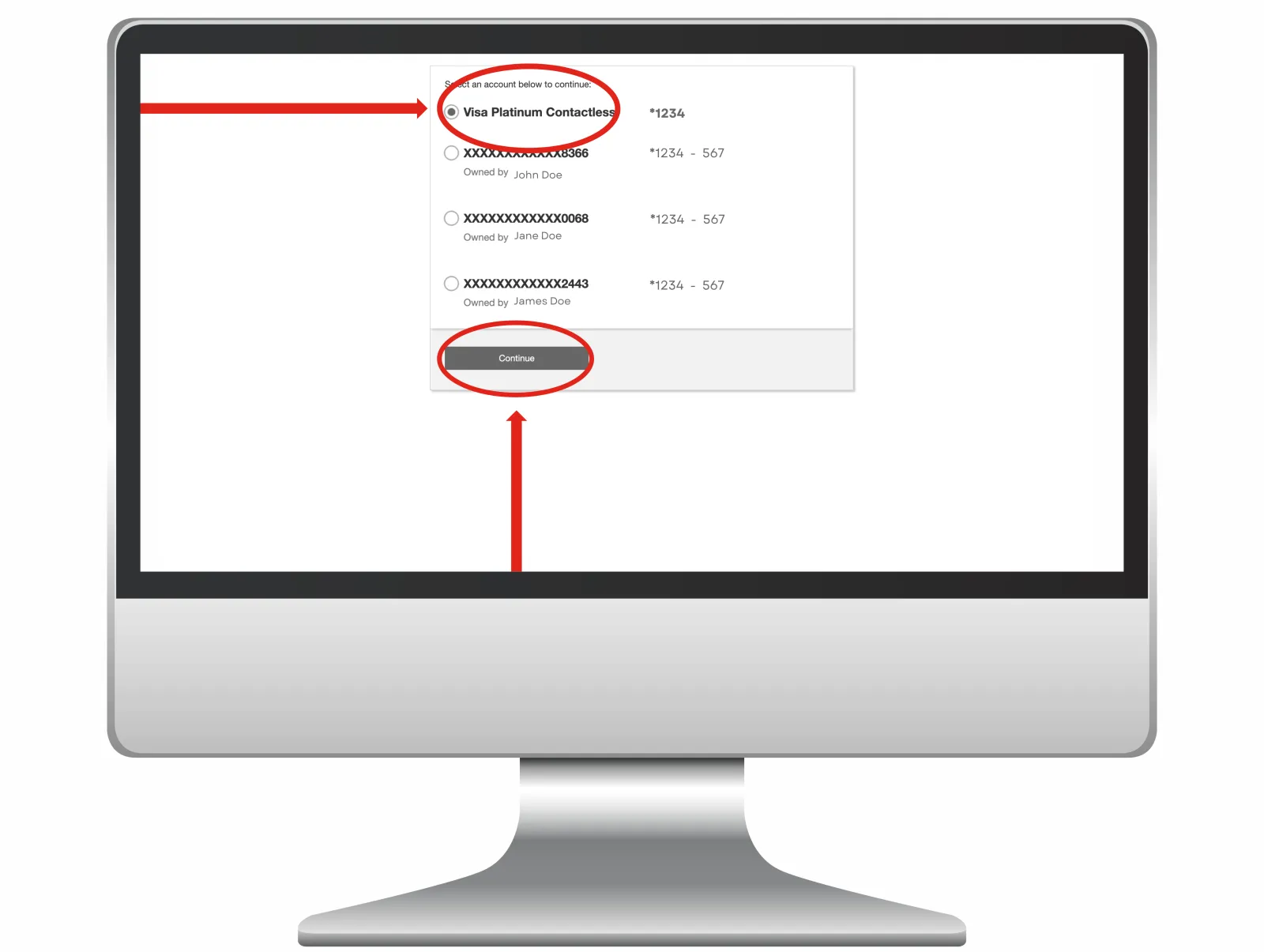
Select Account:
Once you click on the "Credit Card eStatements/Auto Pay" tab, this page will appear. Select which account you want.
Step 4
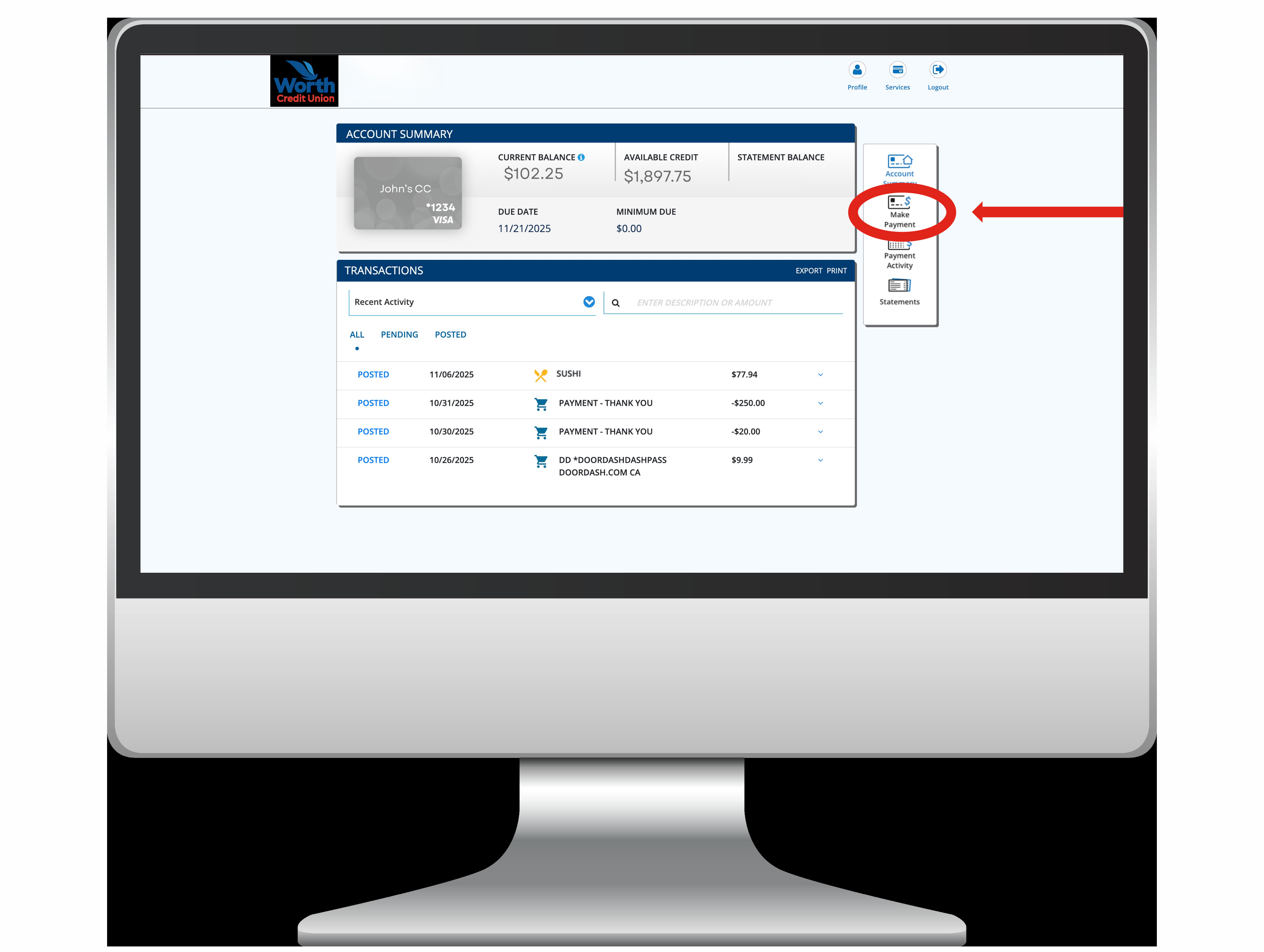
Account Summary:
Next your Account Summary will appear. On the right hand side you will see a button label "Make Payment". Click that link.
Step 5

Review Terms and Conditions:
After you select, "Make Payment", you will be brought to the terms and conditions. Read the document and click the check box after. Then click "Next".
Step 6

Choose Payment:
Once you get to this screen you will choose a "Payment Account" and "Payment Date". After that you will then select the amount you want to pay. Then click "Next".
Step 7

Complete Payment:
Finally you will be brought to the last two sections of the process. On the upper right corner you will see the tabs, "Review" and "Authorize". Read these pages to ensure everything is correct and click "Next". Your payment should then be complete.