Mobile Convenience

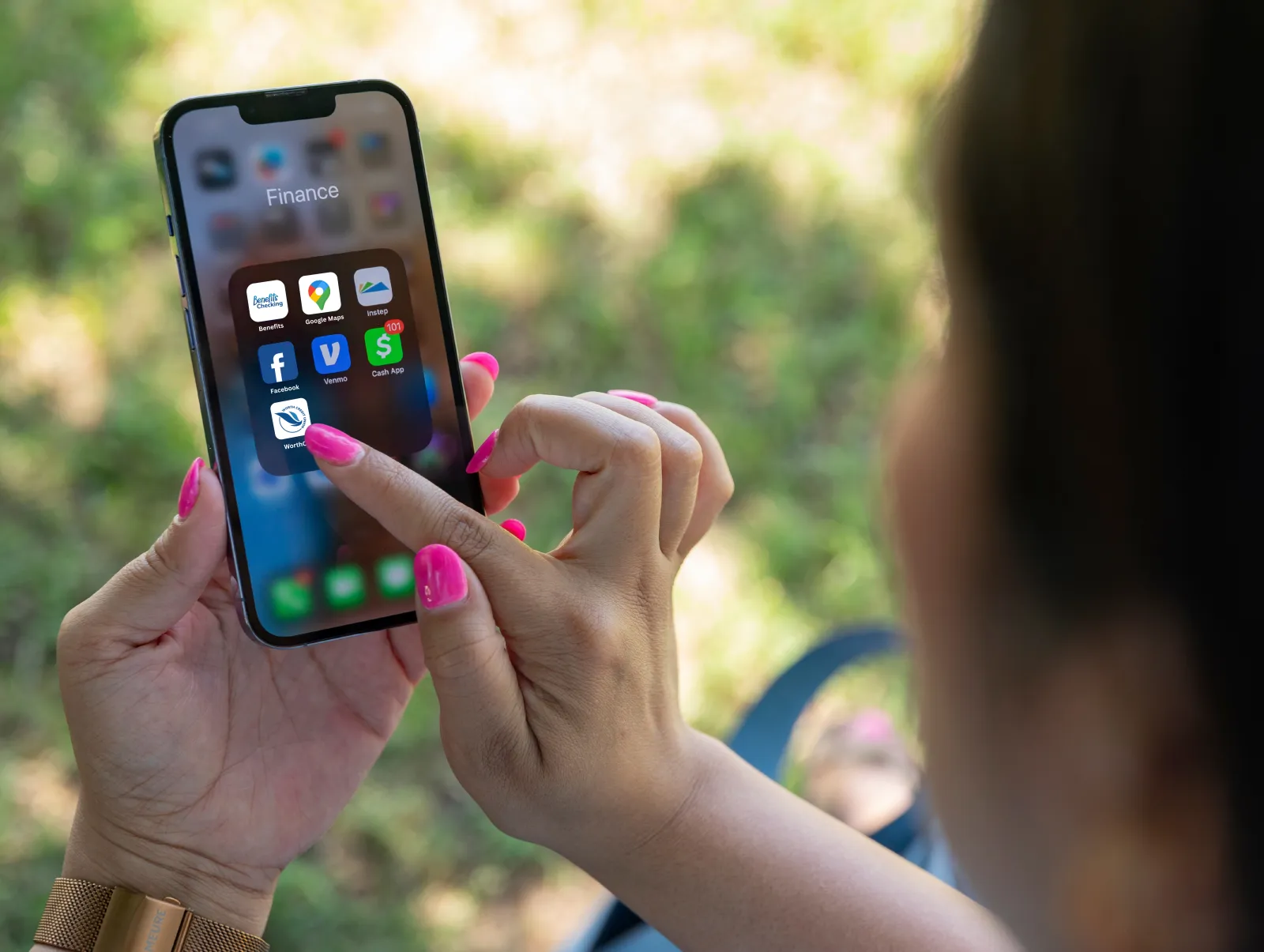
WorthCU App
WorthCU has free Mobile Banking apps with Mobile Remote Deposit.
Visit the App Store on your iPhone/iPad or Google Play Store on your Android device and download the "WorthCU" App.
Your use of mobile banking to access your WorthCU account is governed by the terms and conditions of the WorthCU Online Banking Disclosure.
Add us to your mobile wallet
Whether you're using an iPhone or an Android device, it's easy to add your WorthCU debit card to your mobile wallet. Just open Apple Wallet or Google Wallet, tap the option to add a new card, and follow the simple steps. Once added, make it your default card for quick, tap-and-go payments at your favorite stores.
Text Message Banking
Need quick access to your account but not near a computer? WorthCU's free text message banking service makes it easy to check your balance, view recent transactions, and more - all from your mobile phone via simple text commands. No app or internet required.
To get started, log in to Online Banking and register your mobile number under the “Additional Services” tab. Once you’re set up, you’ll have secure, on-the-go access to your account anytime, anywhere - just by sending a text.

FAQs
-
What can I do with the Mobile Banking App?
- View account balances and recent transactions
- Transfer money within accounts
- Pay bills you have already set up using Bill Pay
- Locate your nearest WorthCU branch or Free ATM
- Deposit checks using Mobile Remote Deposit
-
How do I use the Mobile Banking App?
- Open the WorthCU App on your phone or tablet
- Enter your Home Banking User ID and password then select the "Login" button
- You will be prompted to complete your one time access code (on first login via text or phone call)
- Home menu screen will open
- Use the buttons on the home menu to access the functions you need
- Make sure and click "Log off" when ending your mobile session
-
Do I need a special kind of cell phone?
Mobile Banking Apps works with most iPhones and iPads running iOs 13.0 or later, and Android cell phones and tablets running Android 8.0 or later with internet access.
-
What does it cost?
WorthCU does not charge for using Mobile Banking Apps, however your wireless provider may charge for access or data usage based on your wireless plan.
-
Are there limits for deposits made using Mobile Remote Deposit?
You are not limited to the number of deposits you can make using Mobile Remote Deposit. However, there are daily and monthly limits on the deposit amounts that can be processed per user. Members cannot deposit more than:
- $10,000.00 per item
- $10,000.00 per day
- $25,000.00 per month
-
Do I need a special kind of cell phone?
Ensure that your check is properly endorsed including "For Mobile Deposit @ WorthCU" on the back of the check. Your deposit will be rejected if this is not included.
-
What are the text message banking commands to use?
Text Message Banking Commands to Use:
- Type "BAL"- to check primary account balance
- Type "BAL ALL" - to check all account balances
- Type "LAST"- to view the last 5 transactions on one designated primary account
- Type "BAL CHK" - to check balances of all checking accounts
- Type "STOP"- to unenroll from the service
- Type "HELP"- to send info on the commands, how to use